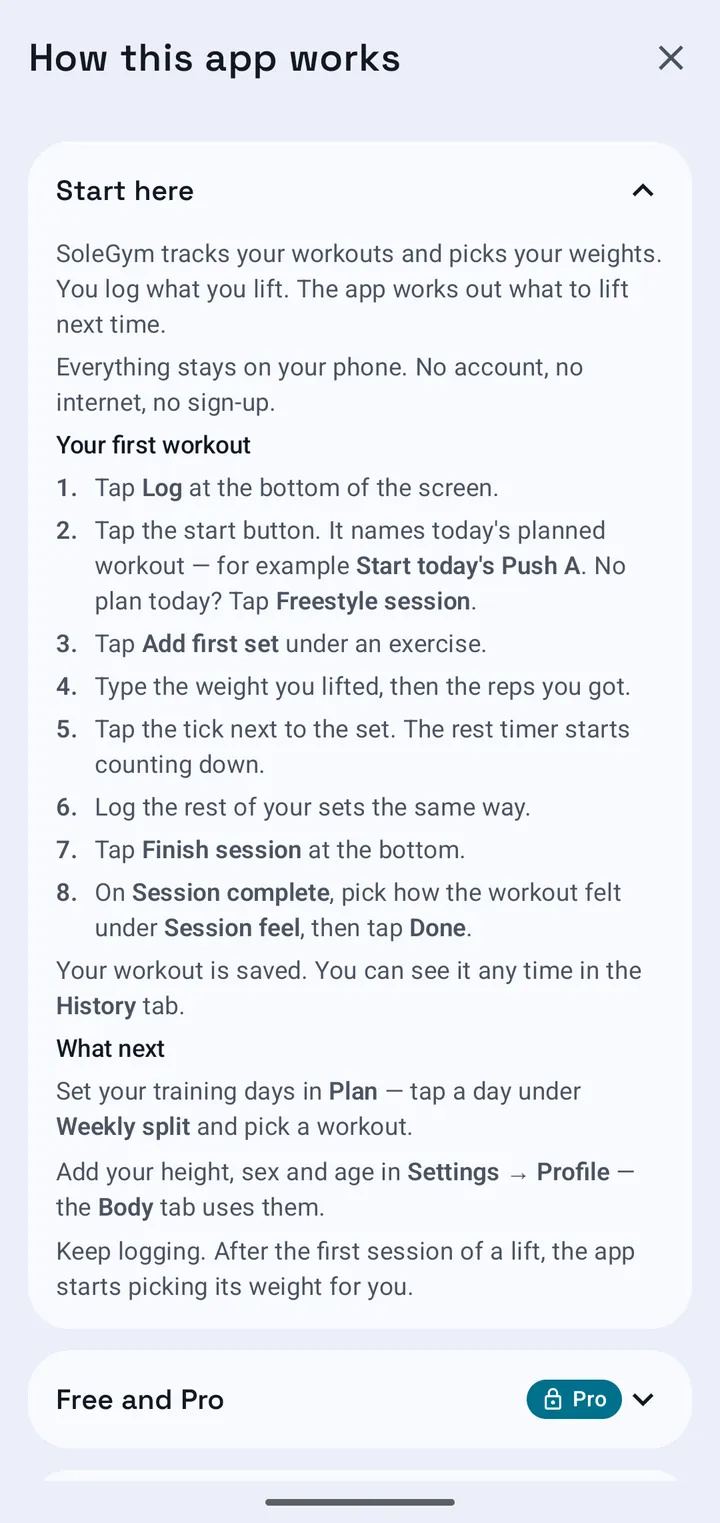
Start here
SoleGym is a training log that makes a decision. You type what you lifted; when you finish, it reads the session lift by lift and sets the target for next time. Nothing else has to be configured for that to work.
It has no account and it can't reach the internet. Your training lives on your phone and moves only when you export it.
Your first workout
- Open the Log tab.
- Tap Freestyle session — or Start today's… if you've already set a weekly split.
- Tap Add exercise and pick a lift. Search by name, or filter by muscle group.
- Tap Add first set.
- Type the weight and the reps. Add an RPE if you want the engine to autoregulate.
- Tick the set. The rest countdown starts on its own.
- Repeat until you're done, then tap Finish session.
- Rate how the session felt, then Done.
What to do next
- Set your weekly split in Plan so the Log tab knows what today is.
- Fill in height, sex and age in Settings if you want the Body tab's estimates.
- Then just keep logging. Everything else — progression, volume analysis, charts — is built out of sessions.
Free and Pro
SoleGym is free to download. Everything you need to log and keep your training is free; the coaching layer is a one-time SoleGym Pro unlock — no subscription, no account, and it works offline.
What's in each
| Feature | Tier |
|---|---|
| Log tab — sets, rest timer, reorder, edit past workouts | Free |
| Library — browse, search, filter, custom exercises | Free |
| History and Body tabs, measurement charts | Free |
| Templates and the weekly plan | Free |
| Backup and import | Free |
| Progression styles: Double progression, Linear, None | Free |
| RPE autoregulated progression engine (RPE and Auto Progression Engine styles) | Trial, then Pro |
| Mesocycles, the meso overview and the volume-wave chart | Trial, then Pro |
| Weekly targets — MEV/MAV/MRV zones and advice | Trial, then Pro |
| Plan status card (training and deload weeks) | Trial, then Pro |
| Home-screen Today widget | Pro |
The free trial
Your first mesocycle is the trial. Start one from Plan and every Pro feature except the widget stays unlocked for the whole block, deload week included. When it ends, Pro locks again until you unlock it.
Lifts set to an autoregulated style then run as double progression. Their setting is kept, not rewritten, so unlocking Pro switches them straight back. Nothing you logged is ever hidden or removed.
Unlocking Pro
- Settings → SoleGym Pro → Unlock. Any lock chip in the app opens the same page.
- The button reads Unlock Pro — followed by the price in your own currency, straight from Google Play. Tap it and Google Play's purchase sheet takes over.
- When it says You have Pro, every feature is unlocked on this device, for good.
The purchase is made by the Google Play app on your phone, not by SoleGym — SoleGym has no internet access and never sees your payment details. If the button reads Price unavailable — open Google Play and try again, the Play Store app couldn't be reached: open it once, then come back.
Some payment methods take a while to clear. Until they do, the card reads Payment pending — Pro unlocks when it clears. Google Play finishes the purchase in the background; reopen the app once it does, or tap Check again.
Restoring on a new phone, or after a reinstall
- Sign the phone in to the Google account that bought Pro.
- Open SoleGym — it checks with Google Play on every launch and usually picks Pro up on its own.
- If it still reads Free: Settings → SoleGym Pro → Restore purchase.
Pro is tied to your Google account, not to a backup file. Importing a backup never changes your Pro status, and a backup never carries it — restore the purchase instead. No Pro purchase found on this Google account means the phone is signed in to a different account from the one that bought it.
Refunds
Refunds are handled by Google Play under its own refund policy — request one through the Play Store, not inside the app. If a refund is granted, Pro locks the next time you open SoleGym. A training block already in progress is never cut off: it runs to its end with everything but the widget still unlocked, and then locks. Everything you recorded stays exactly where it was.
During a workout
The target line
Each exercise card carries the engine's target — sets × reps @ weight — with what you did last time underneath. If the target is armed, a Fill button drops the whole prescription in at once and you edit whatever differs.
Above about 60 kg on bar work you'll also get a warm-up ramp (bar × 10, then 40%, 60%, 80%) and a per-side plate breakdown, so you're not doing arithmetic between sets.
Ticking a set
The tick is your own check-off, and it starts that exercise's rest countdown — 90 seconds unless the template says otherwise. It is not what makes a set count: anything with a weight and reps is logged, ticked or not.
The timer
- Six countdown presets: 0:30, 1:00, 1:30, 2:00, 3:00, 5:00 — or a stopwatch on the other half of the card.
- It stores an end time rather than counting down, so it survives you backgrounding the app, locking the phone, or Android killing the process.
- When it's up: a chime, a double buzz, and a notification if the screen is off. Turn the Notifications and Exact alarms rows in Settings green if you want that to be reliable.
- The timer bar follows you onto every other tab, so you can check History mid-rest without losing it.
RPE and RIR, briefly
RIR is reps in reserve — how many more you could have done. RPE is 10 minus that. RPE 8 means two left in the tank; RPE 10 means nothing left. If you're autoregulating, log an RPE on your hardest set and the engine steers from it.
Changing things mid-session
Add exercises whenever, reorder whole muscle-group blocks, edit any number you already typed. Every edit is written immediately, so a crash or a dead battery costs you nothing.
To throw a session away, tap the bin twice. An Undo appears straight after and restores it exactly.
How your weights go up
The engine runs once, when you finish a session, and makes exactly one decision per lift: up, hold, or back off. It never changes anything mid-workout, and it writes down the reason so you can read it back months later.
The five styles
| Style | What it does | Good for |
|---|---|---|
| Auto Progression Engine Pro | Each set builds on the same set last week: every step the RIR target drops adds a rep, and the weight stays within 12.5% of last week's. In a training block, week 1 is a baseline | Most lifters, most lifts. The default on Pro. |
| RPE autoregulated Pro | Your hardest rated set steers it — 7.5 or easier adds load, above 9 backs off, in between holds | Heavy squats and deadlifts |
| Double progression | Fill every set to the top of the rep range, then load goes up and reps reset to the bottom | Most lifts. The default on Free. |
| Linear | Add weight every clean session; two misses drop you 10% to rebuild | Early training, big barbell lifts, 5×5 style |
| None | Nothing changes automatically | Warm-ups, rehab, conditioning — lifts you want to steer by hand |
Set a default for everything in Settings, and override it per exercise by tapping the lift's name. The two Pro styles read your effort; while Pro is locked, a lift set to one of them runs as double progression and keeps its setting for when you unlock.
How much it adds
5 kg on lower-body barbell work, 2.5 kg everywhere else. Anything the app computes then snaps to the nearest 0.25 kg — or 2.5 lb if you read in imperial — so the target is always loadable. Numbers you type are stored exactly as typed.
When you miss
- First miss: it holds. Same weight next session, go again.
- Second miss in a row: it drops the lift 10% to rebuild.
- Any good session clears the count.
- Lifts on the autoregulated styles never bank a miss at all — a bad day just reads as "back off a bit".
Plan your week
A template is a named list of exercises with sets, reps, rest and a progression style. A split assigns templates to days. Once a day has a template, the Log tab offers it with one tap.
The eight that ship
Push A, Push B, Pull A, Pull B, Legs A, Legs B, and 5×5 A / 5×5 B. The six Push/Pull/Legs templates are sized so that a Mon–Fri run of them lands every muscle group in its productive volume band.
Setting it up
- Open Plan and scroll to the weekly split.
- Tap a day.
- Pick a template, or Rest.
Built-in templates can't be edited — tap Duplicate to customise and change your copy instead. Templates live in the Library tab; Plan only schedules them.
Reading the volume card Pro
Weekly targets · MEV / MAV / MRV looks at the week you've planned — not what you've logged — and places each muscle group on a scale. The set counts per muscle are free; the zones, meters and advice below are part of Pro (and of the free trial block).
- MEV, the minimum for growth. Below it, progress is slow.
- MAV, the productive band. This is where you want most weeks to sit.
- MRV, the ceiling. Past it you're buying fatigue, not muscle.
The Beginner / Intermediate / Advanced chips shift the whole scale, because a trained lifter needs more work for the same effect. Compound credits gives partial credit to the muscles a compound also hits — half a set of triceps for a bench press, and so on. Leave it on unless you specifically want to count only direct work.
Run a training block Pro
A mesocycle is a few weeks of gradually increasing volume, followed by a deload. Instead of doing the same sets forever, you climb, peak, and then back right off so the fatigue clears and the next block starts fresh.
Mesocycles are a SoleGym Pro feature — and your first block is on us. The first time you tap Plan a mesocycle the app tells you so, then runs that whole block with Pro unlocked. See Free and Pro.
Starting one
- Open Plan → Plan a mesocycle.
- Name it, or leave it as "Hypertrophy block".
- Choose a length — 4 to 8 weeks, 6 is the default.
- Pick the muscle groups you're prioritising, then Start the block.
What a six-week block looks like
| Week | Phase | Effort | Sets |
|---|---|---|---|
| 1 | Intro | RPE 7 · 3 RIR | Base |
| 2 | Accumulation | RPE 8 · 2 RIR | Base |
| 3 | Accumulation+ | RPE 8.5 · 2 RIR | +1 on focus groups |
| 4 | Overload | RPE 9 · 1 RIR | +2 focus · +1 others |
| 5 | Peak | RPE 9.5–10 · 0–1 RIR | +3 focus · +2 others |
| 6 | Deload | RPE 5–6 · 4 RIR | Halved, load −20% |
Weeks 1 and 2 add nothing on purpose — you're establishing weights. The extra sets are added on top of whatever each exercise already prescribes, and your priority groups run one step ahead of everything else.
The three things protecting you
- Big lifts stop shy of failure. Even in peak week, squats, bench, deadlifts, overhead presses and barbell rows cap at 1 rep in reserve. Machines and dumbbells can go to the line; a barbell over your throat should not.
- Sets stop at your weekly maximum. If the ramp would push a muscle past its MRV, it trims the addition and tells you which muscle it capped.
- A rough week holds the volume. From week 3, if you marked a muscle sore twice or rated those sessions rough, it repeats last week's sets rather than climbing.
Reading the chart
Bars are the sets you've planned each week, with the deload week in gold. The solid line is what you've actually lifted — including anything off-plan, so it always agrees with your history. The dashed line is a forecast for the weeks you haven't done yet, anchored to your most recent real week. Tap any column for the detail.
Weeks and endings
Block weeks turn over at Monday midnight, local time. Past the final week it reads as complete but never ends itself — tap End mesocycle three times when you're ready, and it's filed in History with actual against planned. A finished block can always be filed into History, Pro or not.
Or just deload sometimes
If a whole block is more than you want, the Training block card takes a deload cadence — every 3 to 6 weeks. That version is gentler: load drops 20%, sets stay put, and the engine banks nothing that week. The cadence is free.
Track your body
The Body tab holds bodyweight, eight tape sites, and an optional body-fat figure from a scan. Everything else — body fat, lean mass, BMI, BMR, TDEE — is worked out from those.
Before you start
Set height and sex in the setup card; add your age if you want BMR, TDEE or the CUN-BAE body-fat method. Until height is set, new entries stay disabled, because none of the formulas can resolve without it.
Logging an entry
- Open Body and find the new-entry card.
- Fill in whatever you measured — one field is enough.
- Tap Backdate if it wasn't today.
- Save.
The body-fat methods
- Navy — tape method. Needs your waist and neck, plus hips for women.
- YMCA — waist and bodyweight only.
- CUN-BAE — age and BMI, no tape at all.
Pick one in Settings; each card previews what it would say about your latest entry. Any entry with a scan figure uses that instead, and says so. Open an entry to see all three side by side with the one in use marked.
Goals
Set a target and a number of days, and each goal reports On pace, Behind or Done with a projected date. One goal per metric — a new one replaces the old. The projection only shows while you're actually moving the right way, because a date derived from going backwards is noise.
Keep your data safe
The app can't even reach the internet. That's the point — and it's also the trade-off: there is no cloud copy of your training. If the phone goes in a river, the backup you made is the only version that survives.
Making one
- Settings → Backup.
- Save to device or Share backup… and put the file somewhere you'll find it.
One file holds everything: sessions, plan, templates, measurements, goals, engine state and your current block. It's plain JSON — readable, and not locked to this app.
Automatic weekly copies
Set a Backup folder once and the app refreshes a copy there every week when you open it. Turn on Back up after every session to refresh it each time you finish a workout instead. Choosing the folder is the permission — the app has no storage access of its own. Want the copy on your own server? Pick a folder from a syncing app such as DAVx⁵ or Nextcloud: that app does the uploading, and SoleGym still never goes online.
A backup never carries your Pro status — that lives with your Google account. Importing a backup never changes it; see Free and Pro for restoring a purchase.
Restoring, and moving phones
- Settings → Import backup.
- Pick the file and read the summary of what's in it.
- Tap Restore this backup twice.
A restore replaces everything currently in the app rather than merging. It snapshots what you have first, rolls itself back if anything fails mid-way, and leaves your previous data on an Undo for a moment afterwards. A backup file is also the only way to move your training to a new phone.
The pop-up explainers
Short guides appear once, at the moment they're relevant, then get out of the way. The app keeps every one reachable behind a small info icon — and mirrors them all inside Help. Here's what they cover.
RPE and RIR
What the numbers mean, and why logging one on your hardest set is what lets the engine autoregulate.
Why the numbers change
Where an extra set came from, why volume was held this week, and what a weekly-maximum cap is doing to your plan.
Deload week
Why the light week is deliberate, what changes during it, and why nothing you do that week can break a streak.
How your week is planned
How the status card reads your week — sessions, sets and tonnage against the last one.
Weekly volume zones
MEV, MAV and MRV in plain words, and what to actually do about each zone.
Engine styles while Pro is locked
Lifts set to an autoregulated style run as double progression until Pro is unlocked. Nothing is rewritten.
Good to know
- Weeks start Monday, everywhere — charts, averages, block week numbers — in your local time.
- Switching units changes only what you read. Everything is stored in kilograms and centimetres; switch to imperial and back and nothing has moved.
- Comma decimals work. Typing 82,5 means 82.5.
- A dash (—) means not measured yet. It is never an error.
- Deleting takes two taps. The first turns the button red; it disarms itself after a couple of seconds if you don't mean it. Most deletions then offer an Undo.
- Sheets close by swiping down or tapping outside — there's no close button to hunt for.
- Everything scales with your system font size. There's no in-app text-size setting because Android's already does it properly.
If something's wrong
The rest alert didn't fire
Open Settings → Timer & alerts. The Notifications row must read Allowed, and on Android 12 and newer the Exact alarms row must read Alerts fire on time — without it Android may hold the alert back by minutes. Then hit Test: it schedules a real alarm eight seconds out and tells you whether Android actually accepted it. If your phone has an aggressive battery saver, exempt SoleGym from it.
A lift is progressing oddly
Tap the lift's name during a session to see its engine state, and use Simulate next session to see what a good or bad session would do to it. Forget this lift clears its state, and the next session you log re-seeds the baseline from your heaviest set.
My volume numbers look wrong
Almost always an untagged exercise. Open Library → Exercises: anything running on a guess is sorted to the top and tinted amber. Confirm its muscle group and every chart downstream corrects itself.
I logged a session wrong
Open it in History and tap Edit. Names, exercises, weights and sets are all changeable, and volume, RPE and PRs recalculate on save. The engine decision that was banked at the time deliberately stays as it was — it's a record of what you were told, not a live figure. If a session shouldn't count at all, Exclude it: it drops out of every chart and calculation but stays in the list.
I'm getting a new phone
Export a backup from the old one and import it on the new one. There's no sync to fall back on, so do this before you wipe anything. Pro comes across separately: sign in to the same Google account and tap Settings → SoleGym Pro → Restore purchase.
I paid for Pro but the app says Free
Open Settings → SoleGym Pro and tap Restore purchase. Pro restored — welcome back means it's done. No Pro purchase found on this Google account means the phone is signed in to a different account from the one that bought it — switch accounts in the Play Store app and try again. Google Play isn't available right now means the Play Store app couldn't be reached: open it once, then retry. A payment that hasn't cleared yet shows as Payment pending and unlocks on its own once Google Play finishes it.